1 Datasource preparation & import
Best practices for your datasource
- Must contain more than one data column/title (you can disable this behavior in the import preferences if you have a csv with one column only)
- Cannot contain line breaks inside of the data (just at the end of each data record)
- Each flied has to be separated by one of the following characters: semicolon, comma, tab or vertical bar
- Has to be encoded as MacOS Roman, UTF-8 (recommended), UTF-16BE, UTF-16LE, UTF-32BE or UTF-32LE
Import datasource
Drag and drop your CSV file on the CSV icon or select a file by clicking the folder icon. Note: If you have Excel installed and running, you might see an Excel icon instead. You can still drop your csv file [1] on it and it will change to a CSV icon.
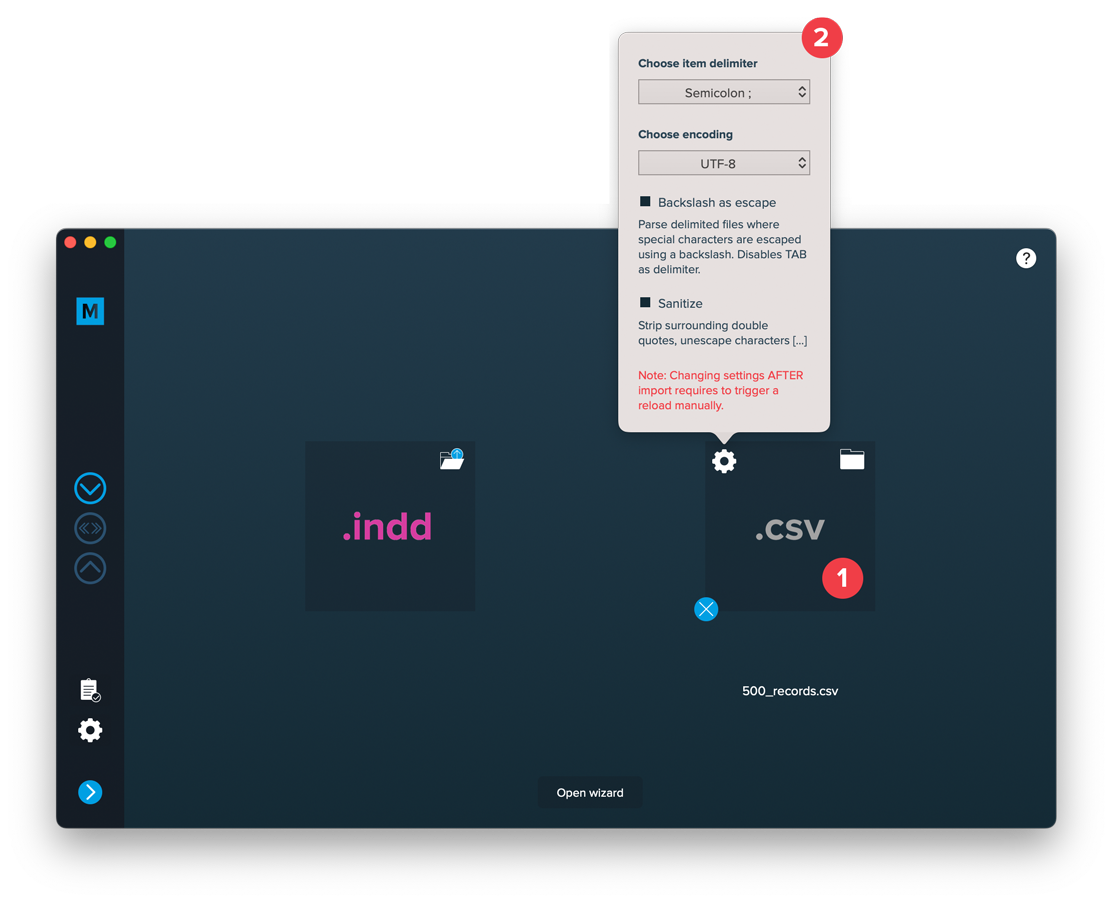
Then the settings will pop up. You must select the correct delimiter and encoding or the import will fail. The other options are optional:
Sanitize
With this option turned off, individual fields will be imported exactly like they are found in the .csv file. If you want these fields to be cleaned (surrounding double quotes stripped, characters unescaped, etc.) you can turn this option on.
Backslash as escape
This option allows you to import files where special characters are escaped with a backslash (the separator, newline etc.)
2 Layout preparation & import
Best practices for your layout
- Always expect long data. When preparing layouts for MyDataMerge, you have to add placeholders to text frames. Please make sure that text frames which contain placeholders are big enough to provide enough room for the data you want to merge in.
- Move unneeded stuff to master pages. Instead of keeping all items on the regular pages, move everything that’s does not need to be merged (like decoration, background images…) to the master page. For large databases, this will speed up the process a lot.
- Do not use styling options if every data record has the same styling. Apply styling in your layout document instead.
- Use locally installed fonts instead of auto downloading them from Adobe Cloud. Adobe Fonts can be installed locally as well in your Adobe Creative Cloud app. When loading them online, this can massively slow down the merge process or lead to errors.
- Scale images down. When merging thousands of data records its necessary to scale images down before the merge. No matter if the images are merged or part of the layout. This can save a lot of processing time.
Add placeholders to your layout
Add text placeholder
Requirements
- The placeholder text can be located in any text frame, along any other text
- You can choose any text you like (a-z, 0-9, _-)
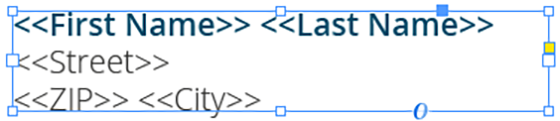
Make sure that even the longest text from your datasource will have enough room in the text frame provided, or overset text will be produced.
Add image placeholder
Requirements
- The placeholder text must be located in a single text frame (not linked with any other)
- The frame can have any proportions
- You can choose any text you like (a-z, 0-9, _-)
- The placeholder text including tags must be the only content of the text frame (be careful with spaces)
- If you want to use Autolink you can add @ to identify the placeholder as image, e.g. <<@image>> (for using Autolink you also have to make sure that the label of the placeholder and the title of your datasource colum must match (in the example above, the datasource column title must be “image”)
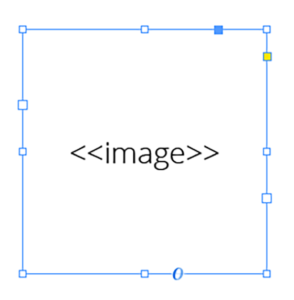
Note: The position/alignment of the text inside the frame is not taken into account. You can control the alignment and fitting in the configuration.
Add colored QR-Code placeholder
Requirements
- The placeholder text must be located in a single text frame (not linked with any other)
- The text frame must be a square (same height and width)
- The placeholder text including tags must be the only content of the text frame (be careful with spaces)
- You can choose any text you like (a-z, 0-9, _-)
- If you want to use Autolink you can add # to identify the placeholder as QR-Code, e.g. <<#qrcode>>
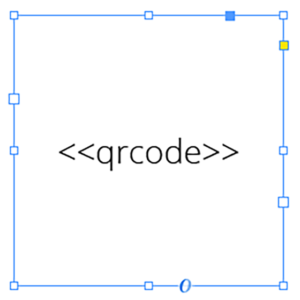
Coloring QR-Codes
To color your QR-Codes, you just need to apply a color to your text frame and the text. The text frame’s color will be the background color of the QR-Code, the text color will result in the QR-Codes color itself.
Best practice: Even if you don’t need a background color (e.g. cause it is white) you still should set a color. This speeds up the merge process.
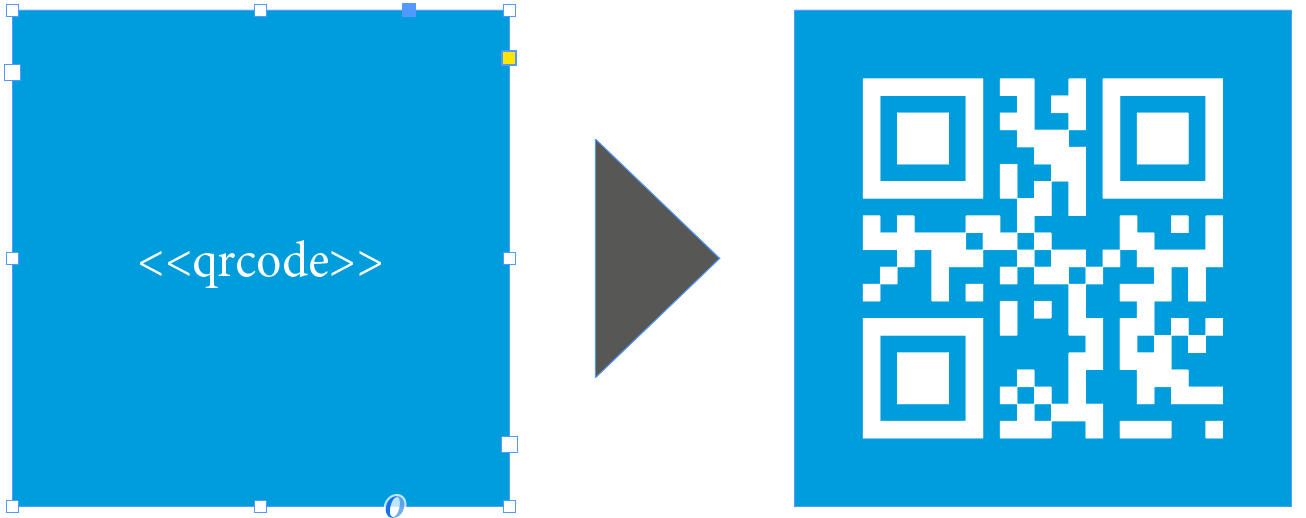
Prepare dynamically changing QR-Code colors
To dynamically apply different colors to your QR-Codes it’s recommended to use multiple setups on your QR-Code placeholder. Use one setup for the basic QR-Code and one or more setups for the changing colors which can be triggered with conditions. Therefore we added the following two chapters to your tutorial:
- “Add multiple setups”
- “Add conditions to setups”
As you already know, colored QR-Codes can be defined by the text frames background color and the text color. MyDataMerge can dynamically apply these two colors by using object styles. To create an appropriate object style, follow these steps:
Add the colors you want to dynamically apply for text and background to the swatches in your layout.
Then add a paragraph style, name it accordingly [1] and set the character color [2] to the color you prefer for the QR-Code:

Then add an object style, name it accordingly [1] set the fill color to your preferred QR-Code background color [2]:
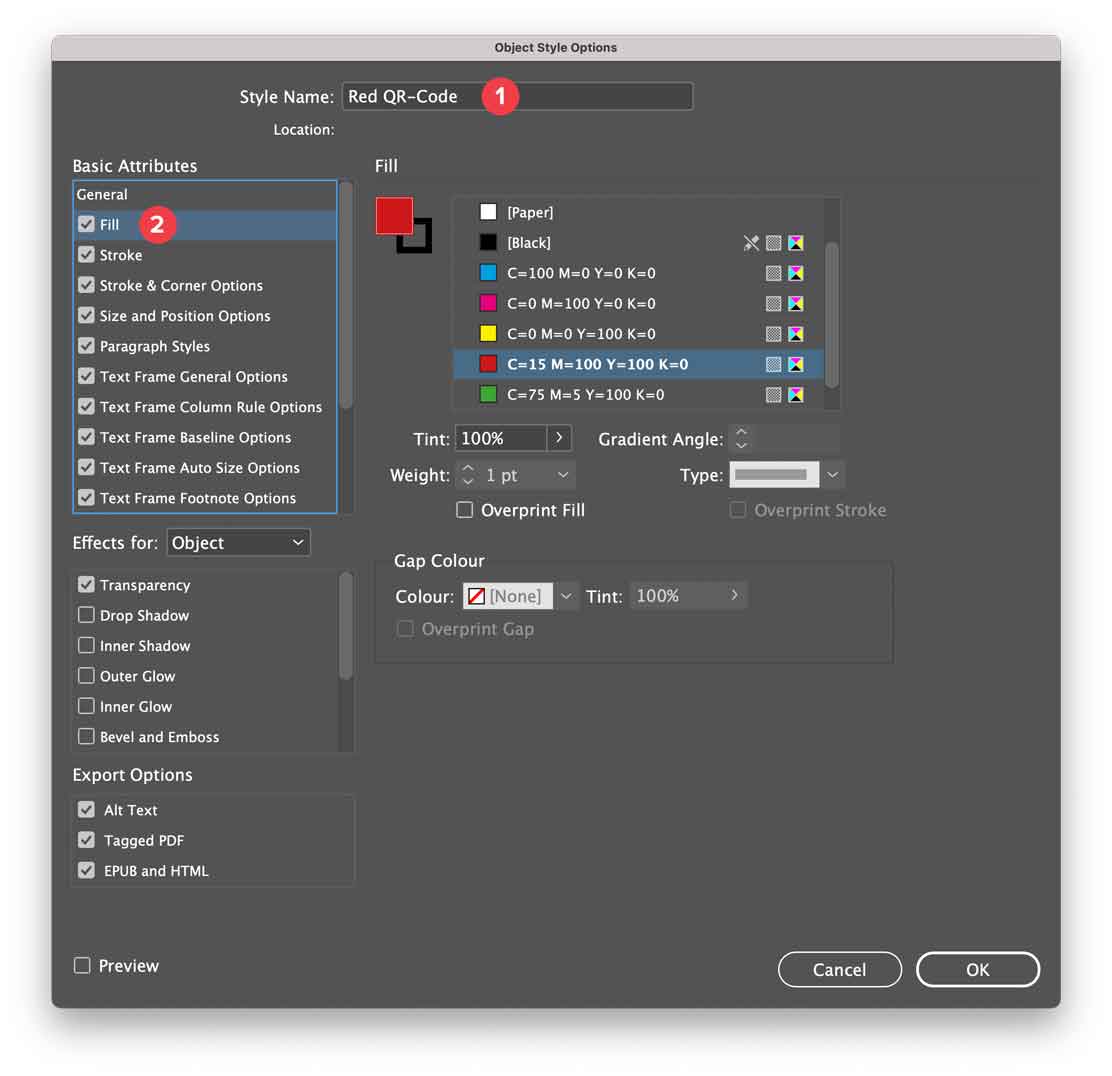
Then – in the same object style – go to paragraph styles [1] and select the previously created paragraph style [2]:
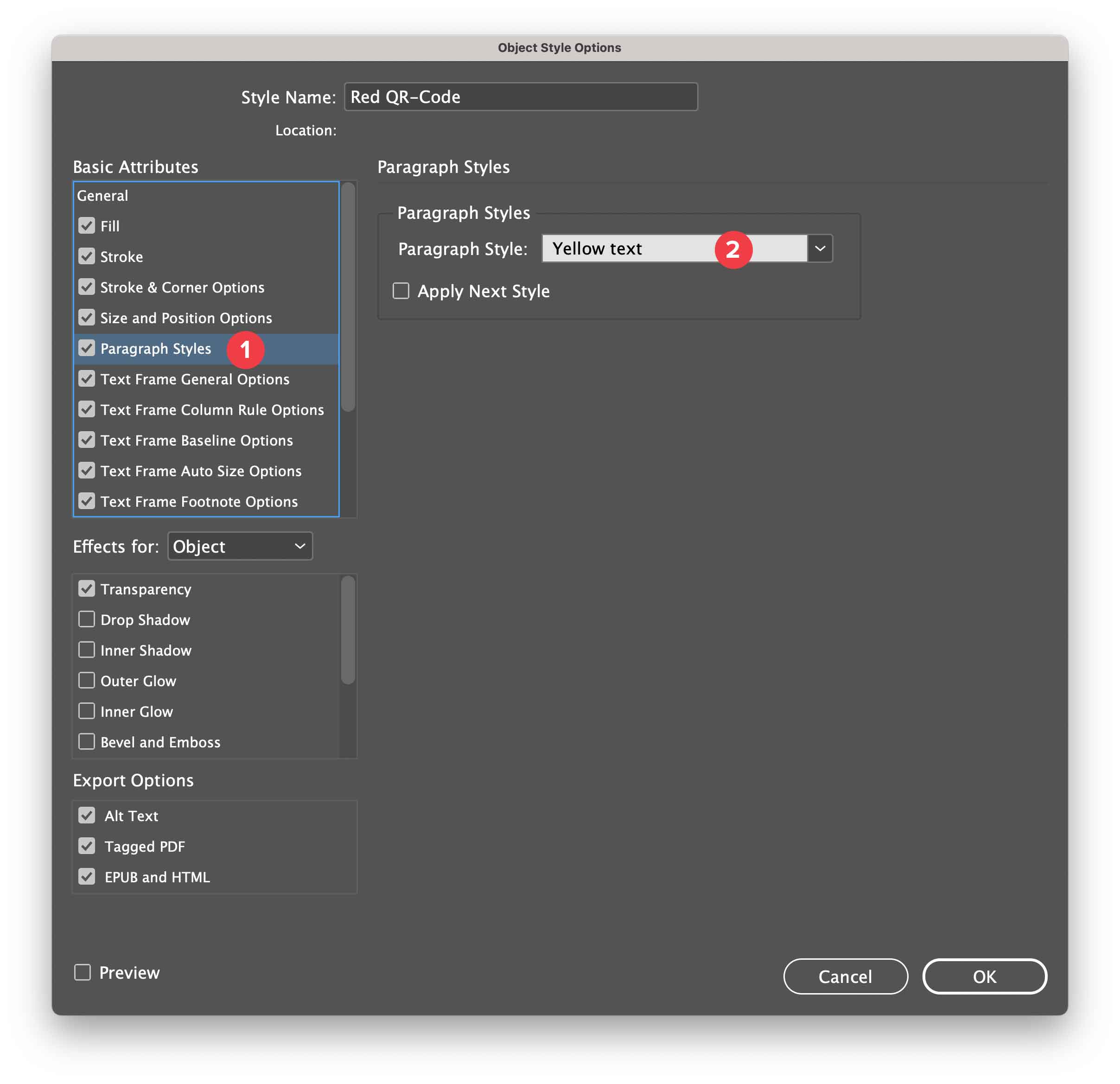
The above object style will result in the following QR-Code colors:

In a later step you will be explained how to apply the object style.
Import
Import Layout
Importing your layout is easy:
Open MyDataMerge, start a new project and drag and drop your .indd file on the INDD area [1] or select the file by clicking the folder button [2]
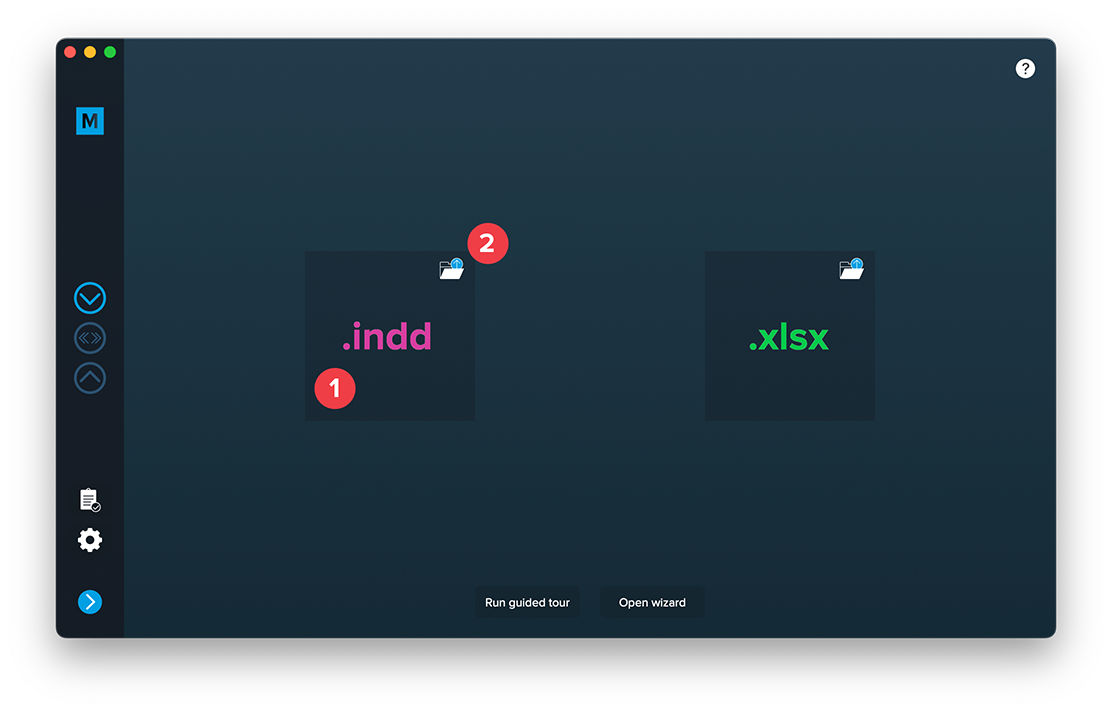
After adding a datasource you can import both files.
Most common issues that may arise
- If you have missing links or fonts, MyDataMerge will throw an error and ask you to fix this
- If you have no placeholders defined (surrounded by << >>), MyDataMerge will throw an error
- If you have auto-download fonts from Adobe Cloud enabled, MyDataMerge will throw an error – this is because InDesign loads these fonts asynchronously and doesn’t let developers (like us) check the loaded state of these fonts. You can bypass this issue by activating the fonts directly in the cloud (so they are always active)
3 MyDataMerge configuration
Autolink - setup placeholders automatically
Autolink is perfect for simple setups (or a good start for more complex setups), saying if you just want to link your datasource with your placeholders.
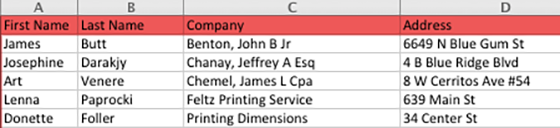
The only requirement is that your data titles match your placeholders exactly.
Example database:
Example layout:
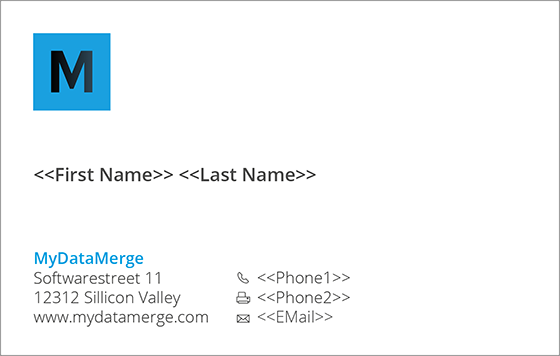
Example placeholders:
- For text replacements a placeholder “<<Last Name>>” will automatically create a text placeholder and match the datasource column “Last Name”.
- For image replacements a placeholder “<<@image>>” (note the @ which represents an image) will automatically create an image placeholder and match the datasource column “image”
- For QR-Code replacements a placeholder “<<#qrcode>>” (note the # which represents a qr-code) will automatically create a qr-code placeholder but will not match any datasource column (as qr-codes are more complex than just one value)
Note: Your placeholders in the layout still have to match the requirements or they will be treated as text replacement.
Once your layout is imported, hit the Autolink button in the bottom right.
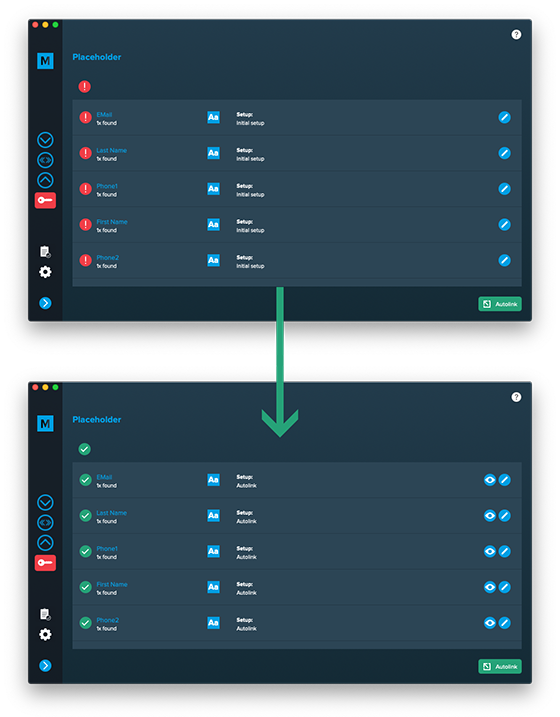
Configurations
Add multiple setups
For every placeholder you can add more than one setup.
If you have a well formed database with no missing data, usually one setup is enough. More than one setup will come in handy in situations where this isn’t the case or where you want to apply different styles.
Example:
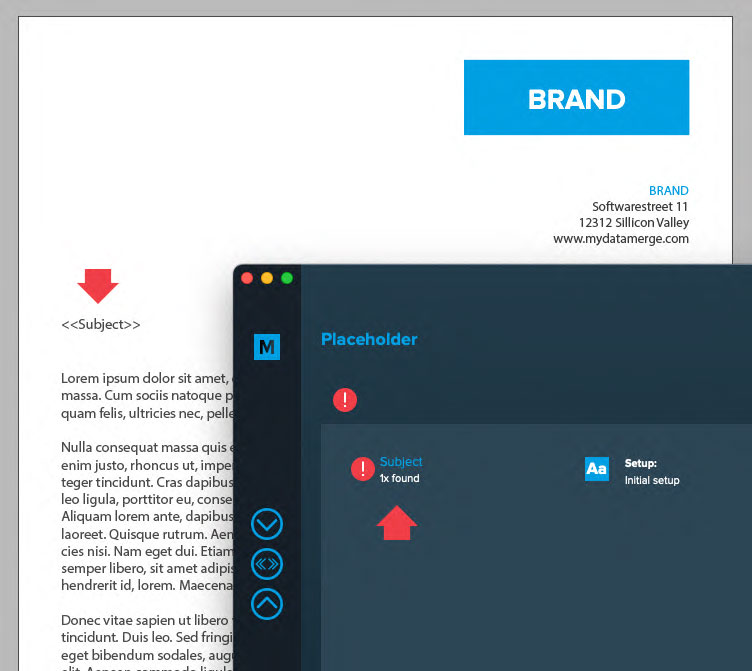
You have a subject line in a letter where you want to output a salutation and last name e.g. “Dear Forrest” where “Forrest” is the first name and comes from the database and “Dear” is a static text. You can do this easily with a simple setup of your placeholder:
In the below image you can see the setup to output “Dear [First Name]”, a static text for “Dear ” [1] and a dynamic datasource element for the first name [2]. The output can be checked in the preview [3]: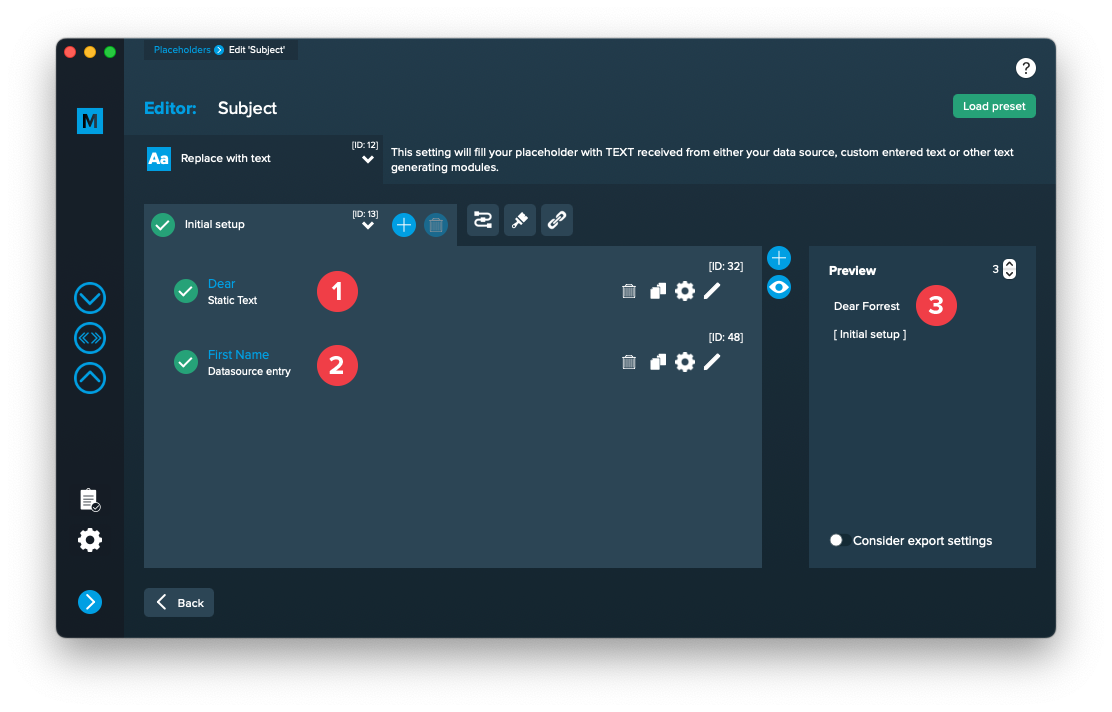
Now imagine you don’t have a first name, then you’d like to output “To whom it may concern” which you can do with a second setup. So we add another setup here and give it an appropriate name [1]:

Then we configure it to output the static text “To whom it may concern”.
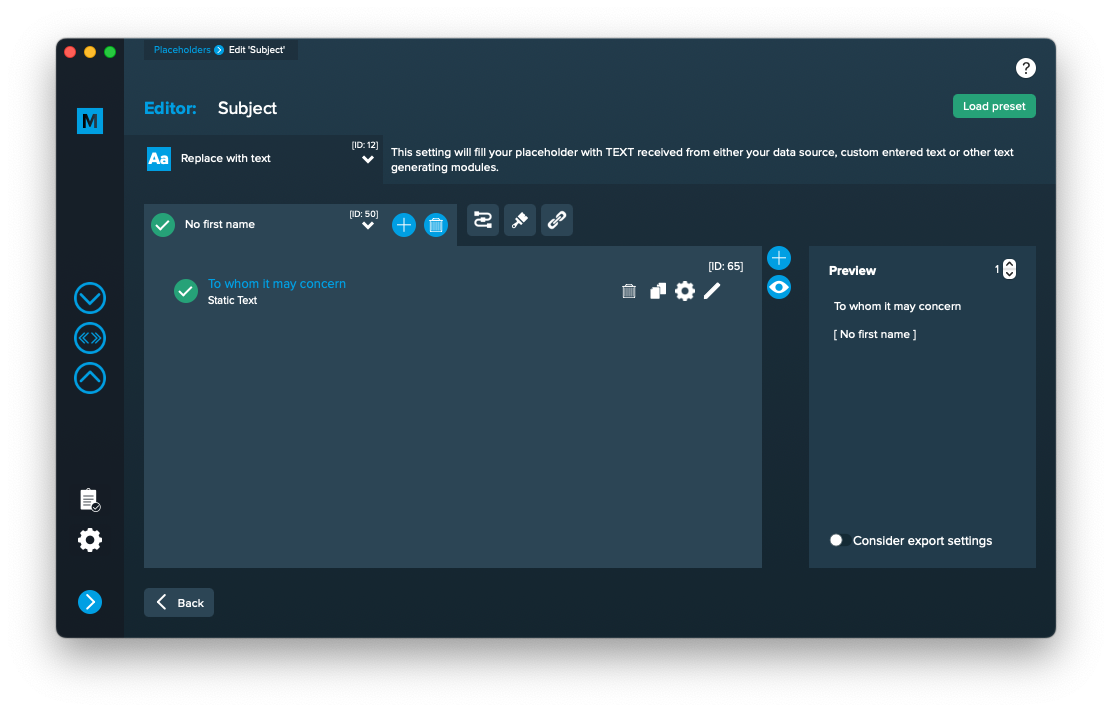
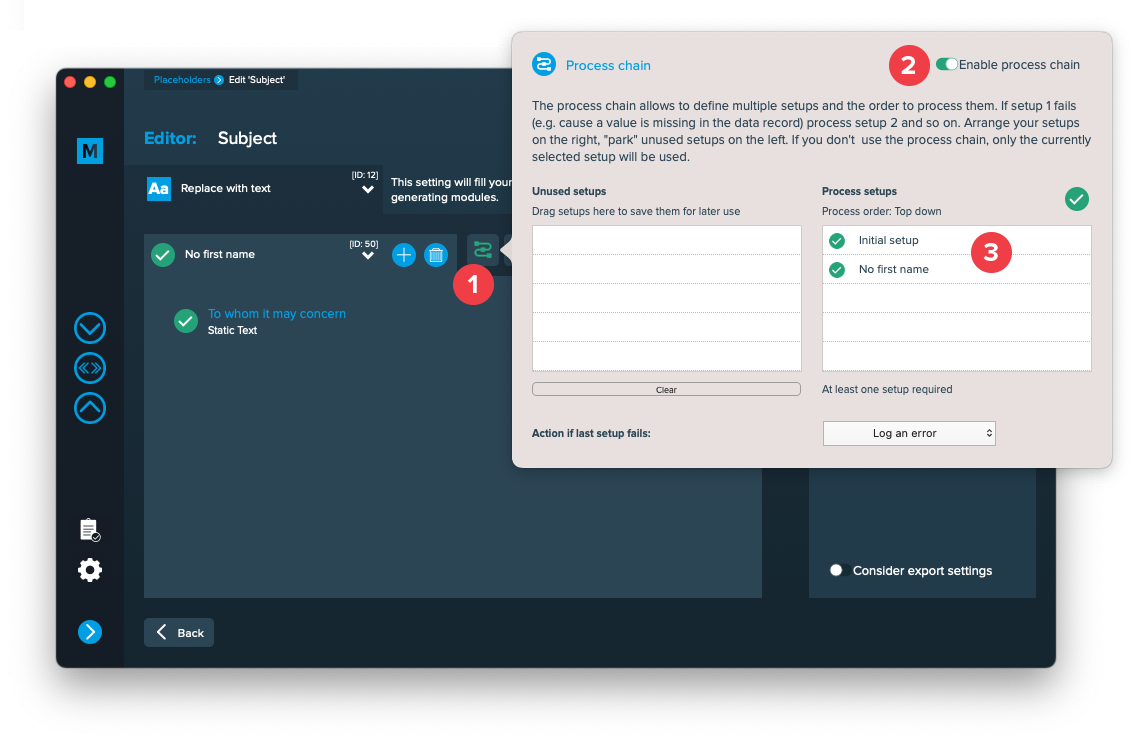
Right now, MyDataMerge would output “To whom it may concern” for every data record, because it’s the currently selected setup. To allow multiple setups to be processed you need to enable the process chain [1 + 2] as shown in the image below. Then all setups in the right table [3] will be processed from top down. If first setup fails (e.g. because first name is missing) then use second one and so on.
You can move unused setups to the left table, they will have no effect there. If the last setup in the right table fails, the “Action if last setup fails” will be executed which you can select at the bottom.
Note: You can add more control by adding conditions (on when it should be executed) to each setup.
Add conditions to setups
While the default behaviour will toggle each setup in the process chain in a row (first fails, use second, second fails, use third …), conditions will trigger a setup if conditions are met. To enable conditions you have to enable process chain first [1]. Then the conditions icon becomes visible  [2]. Enable conditions and add the conditions you require for the selected setup [3] to get triggered.
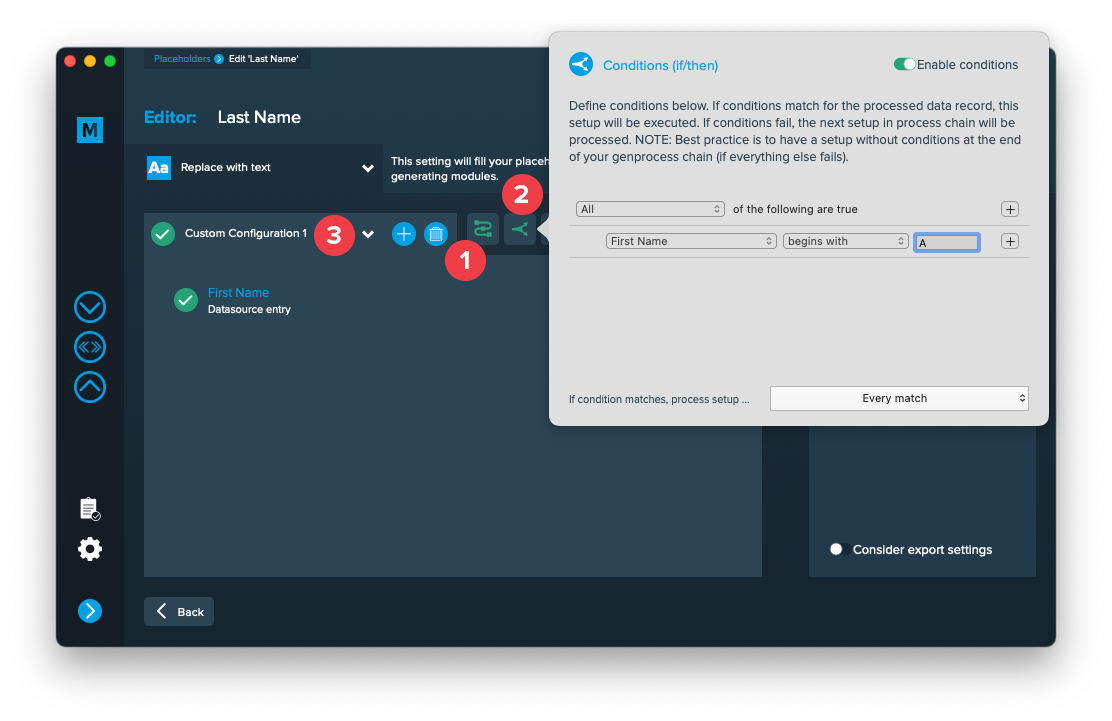
Once you have conditions enabled you will see which setup has conditions in the process chain.
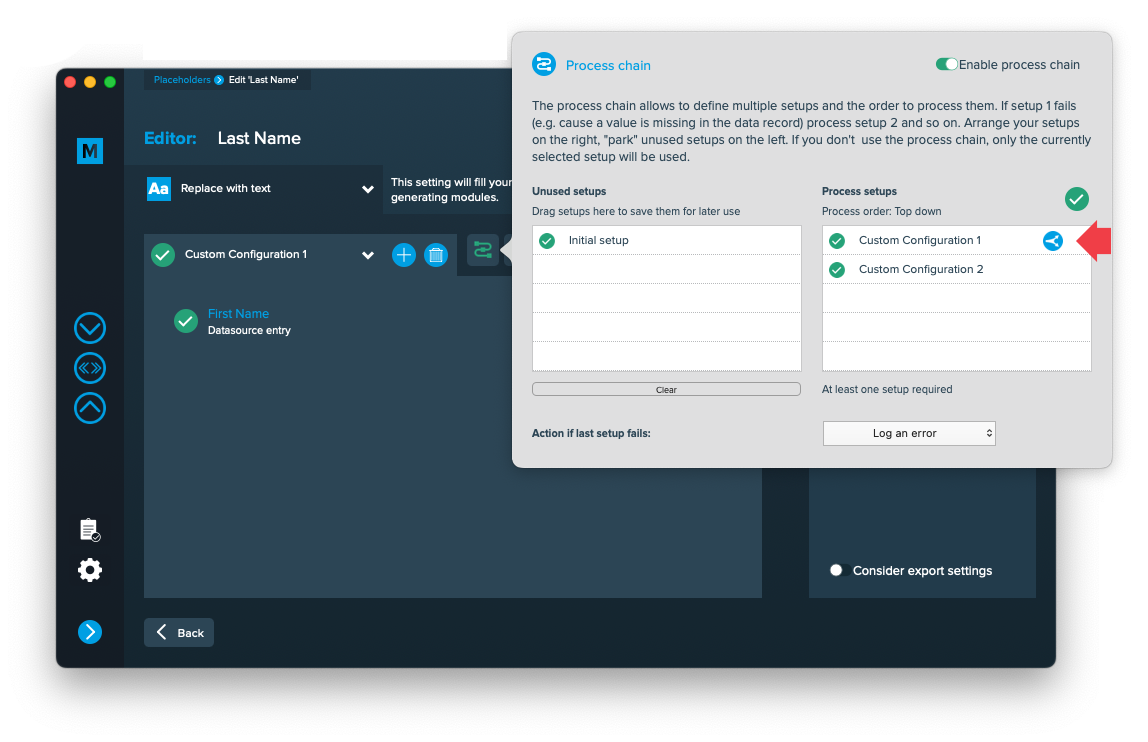
Please note that even if you add conditions to a setup they still will be processed in the order they are arranged in the process chain.
According to the above image this would be:
- “Custom configuration 1” -> Conditions met for the current data record? YES -> Execute it. NO -> Continue with the next.
- “Custom configuration 2” -> Directly executed because no conditions are set. Does it fail? -> Continue with “Action if last setup fails”.
It is always a good idea to have a setup with no condition as last one.
Editing text placeholders
Setup text placeholders
A text placeholder will inject text from various sources into your layout in the merge process.
These sources can be one or a combination of:
- Datasource content (Changes for each record)
- Static text (Always the same)
- Sequence (Different types of counting numbers)
- Automator workflow (for editing outside of MyDataMerge – learn more here)
- Custom (java-)script (learn more here)
To add an element, open the placeholder by double clicking it (or click the pen icon), then add an element by clicking the plus icon:
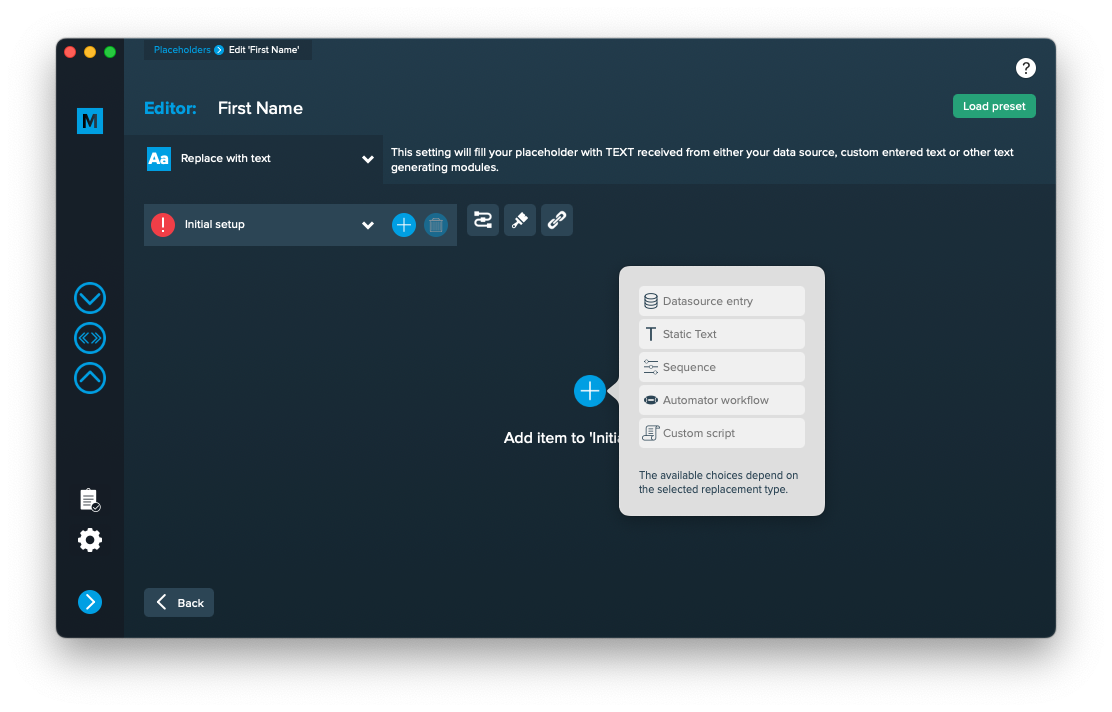
Add the element and the appropriate editor will open (e.g. datasource element):
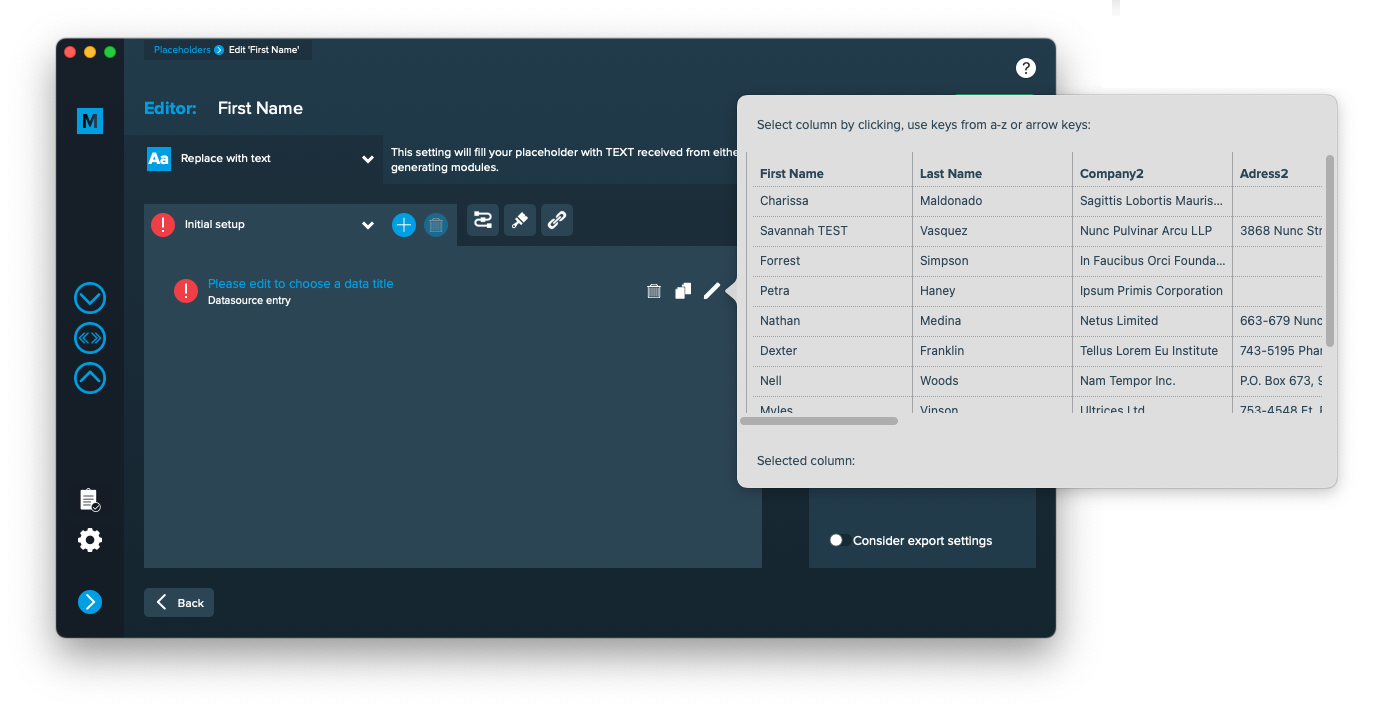 Once you selected or entered the required data, the element becomes valid (green check)
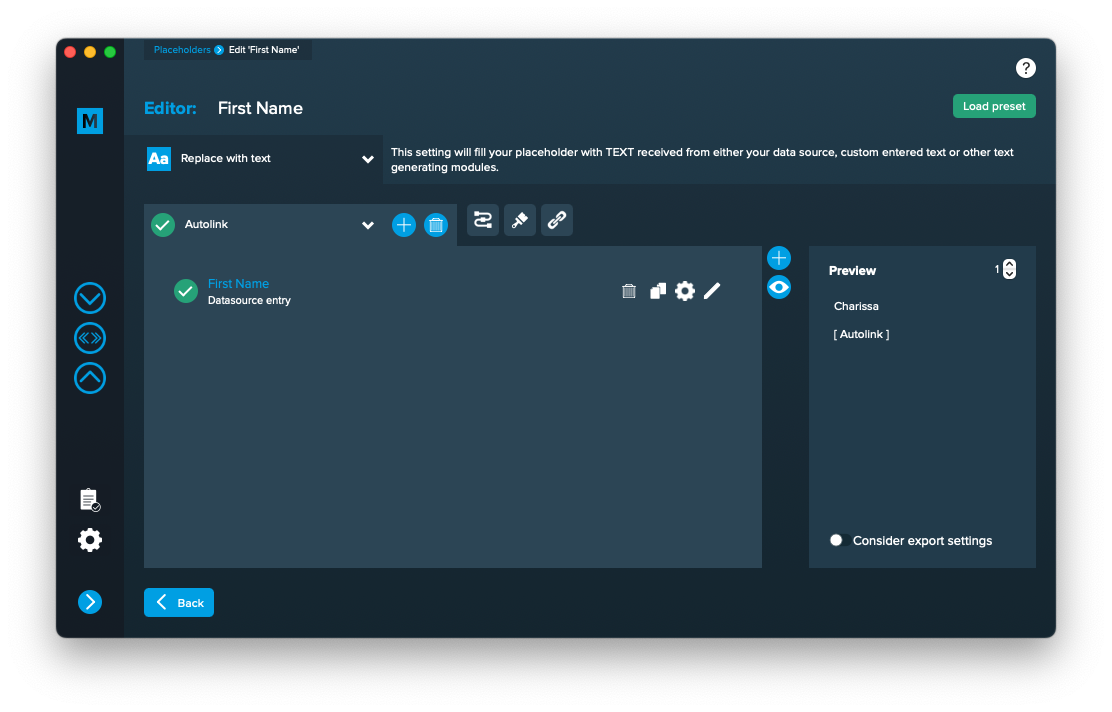
Once every placeholder is valid, you are able to export.
Notes:
- You can combine different elements here by adding them (plus icon above the eye icon) and drag & drop them up or down. The result will always be shown in the preview on the right.
- Additionally every element has some settings (gear icon) which will provide a wide range of tools to transform your data (e.g. strip whitespaces, add space before or after and so on)
Editing image placeholders
Setup image placeholders
An image placeholder will inject images based on file paths from various sources into your layout in the merge process.
These sources can be one or a combination of:
- Datasource content (Changes for each record)
- Static text (Always the same)
- Sequence (Different types of counting numbers)
- Automator workflow (for editing outside of MyDataMerge – learn more here)
- Custom (java-)script (learn more here)
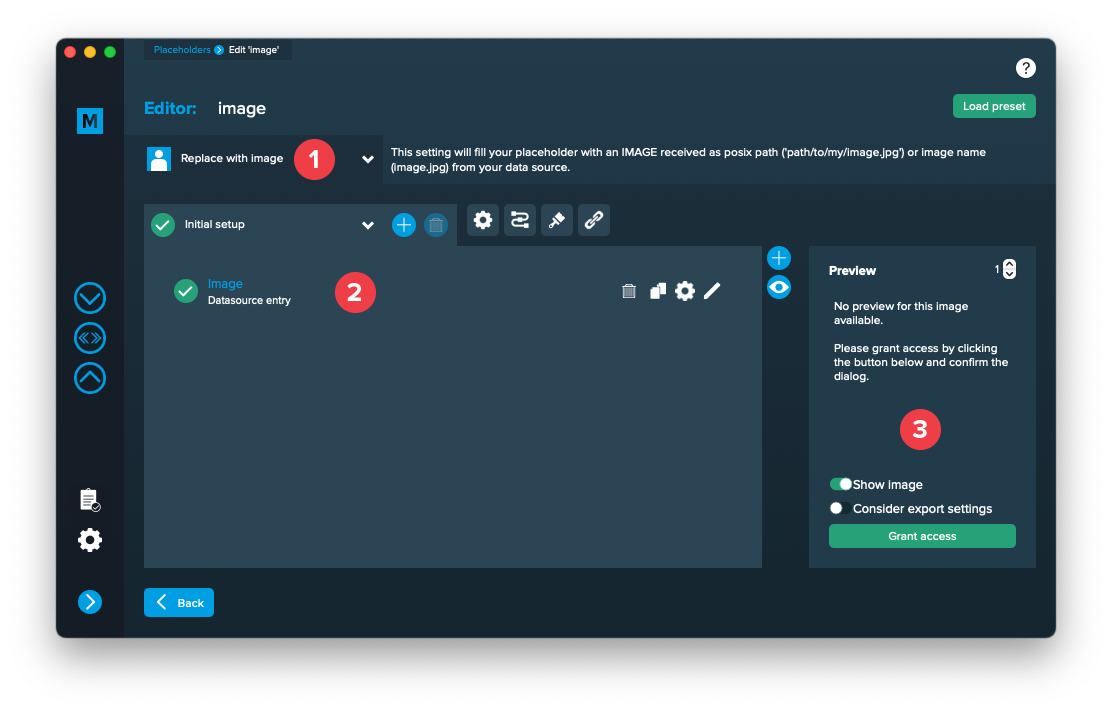
Open the placeholder by double clicking it (or click the pen icon), then the editor will open. First of all, make sure that “Replace with image” is selected [1]. Then add one or more elements to get file paths to your images. In the below example [2] a datasource element is added, where column “Image” is selected (as this column contains paths to the image files). If the element is valid (green check) and a valid image path is given, you will see a preview on the right [3]. If the preview doesn’t appear, you might need to grant access to the image folder for MyDataMerge – click the “Grant access” button in this case. By deactivating the switch “Show image”, MyDataMerge will output the file path in the preview instead.
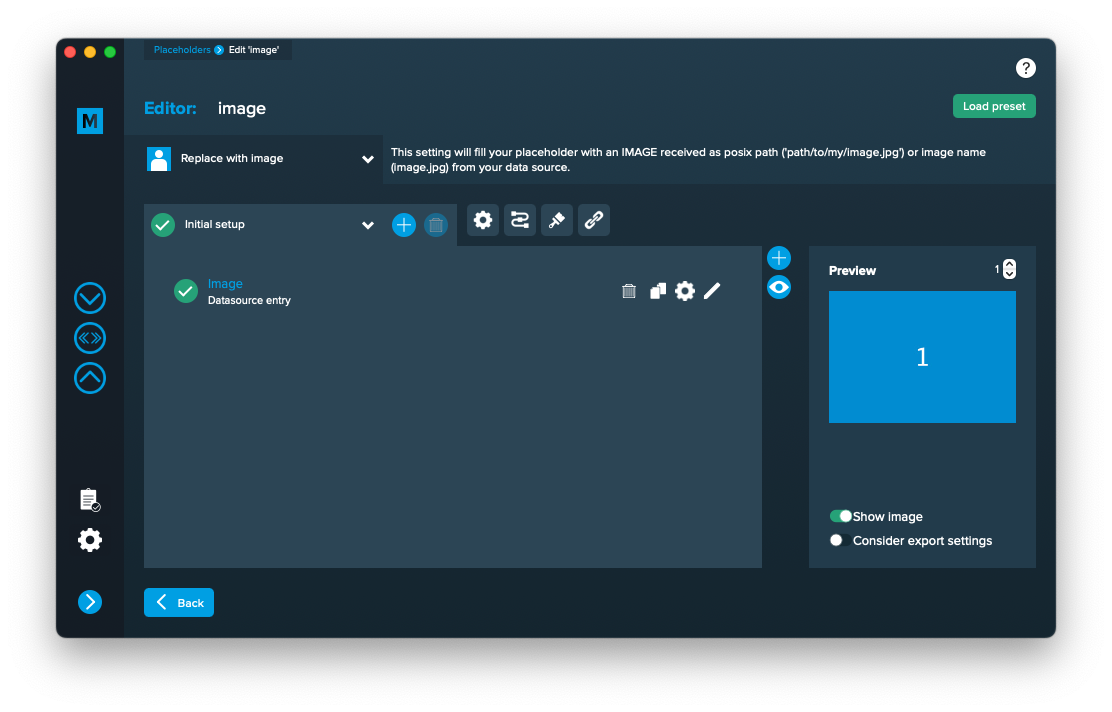
After access is granted, you will see the image appear in the preview on the right:
Editing QR-Code placeholders
Setup QR-Code placeholders
A QR-Code placeholder will add a specific type of QR-Code (vCard, URL, Text) with content from various sources into your layout in the merge process.
These sources can be one or a combination of:
- Datasource content (Changes for each record)
- Static text (Always the same)
- Sequence (Different types of counting numbers)
- Automator workflow (for editing outside of MyDataMerge – learn more here)
- Custom (java-)script (learn more here)
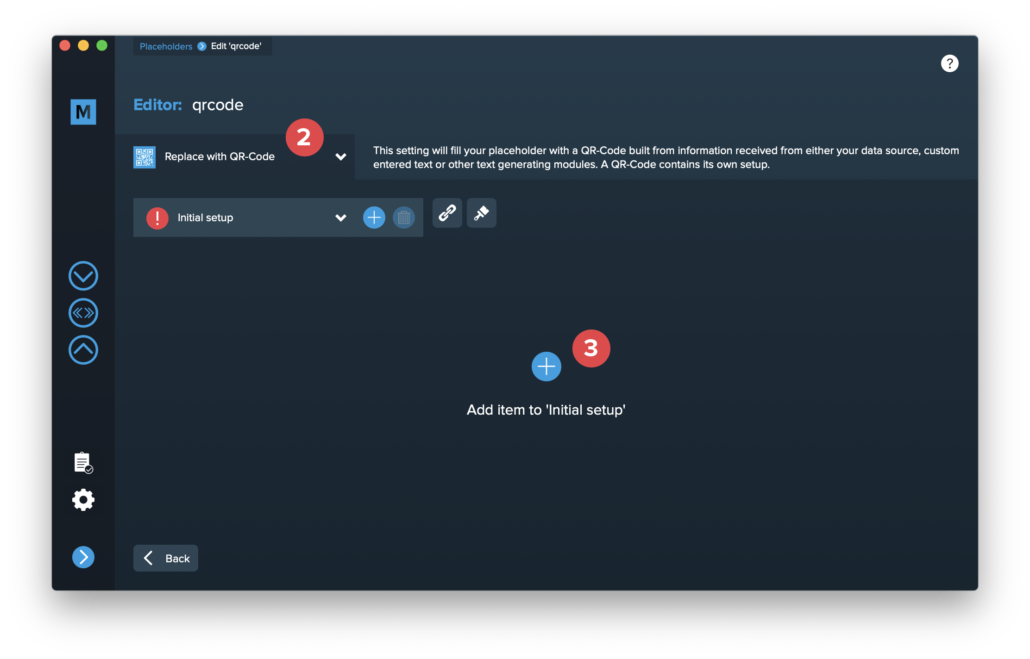
Open the Qr-Code placeholder by double clicking it (or click the pen icon), then the editor will open. First of all, make sure that “Replace with QR-Code” is selected [2]. If you cannot select it, you didn’t follow the requirements for a QR-Code placeholder in the layout. Please check “Add placeholders to your layout” section above.
Then click “Add item to initial setup” [3]. This will automatically add a QR-Code Element and open the QR-Code editor.
Select the type of QR-Code you want to create [4]. Please note that some QR-Code types have optional items [5] which you can enable if you need them.
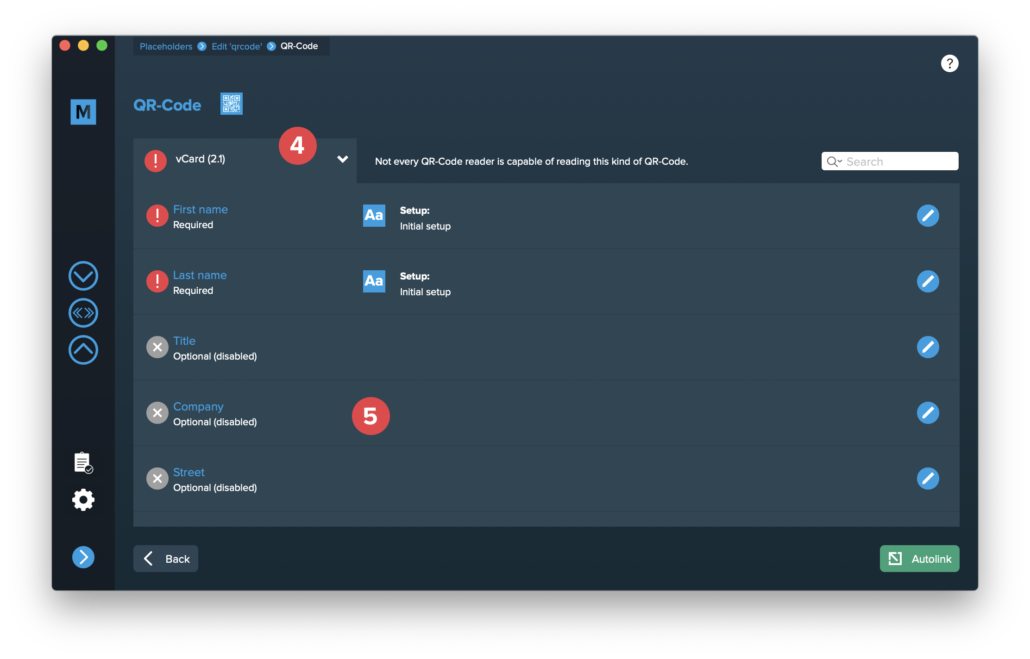
Double click the single items to edit them. The content of a QR-Code is always text, so the single items are handled like a standard text placeholder which you fill from various sources.
These sources can be one or a combination of:
- Datasource content (Changes for each record)
- Static text (Always the same)
- Sequence (Different types of counting numbers)
- Automator workflow (for editing outside of MyDataMerge – learn more here)
- Custom (java-)script (learn more here)
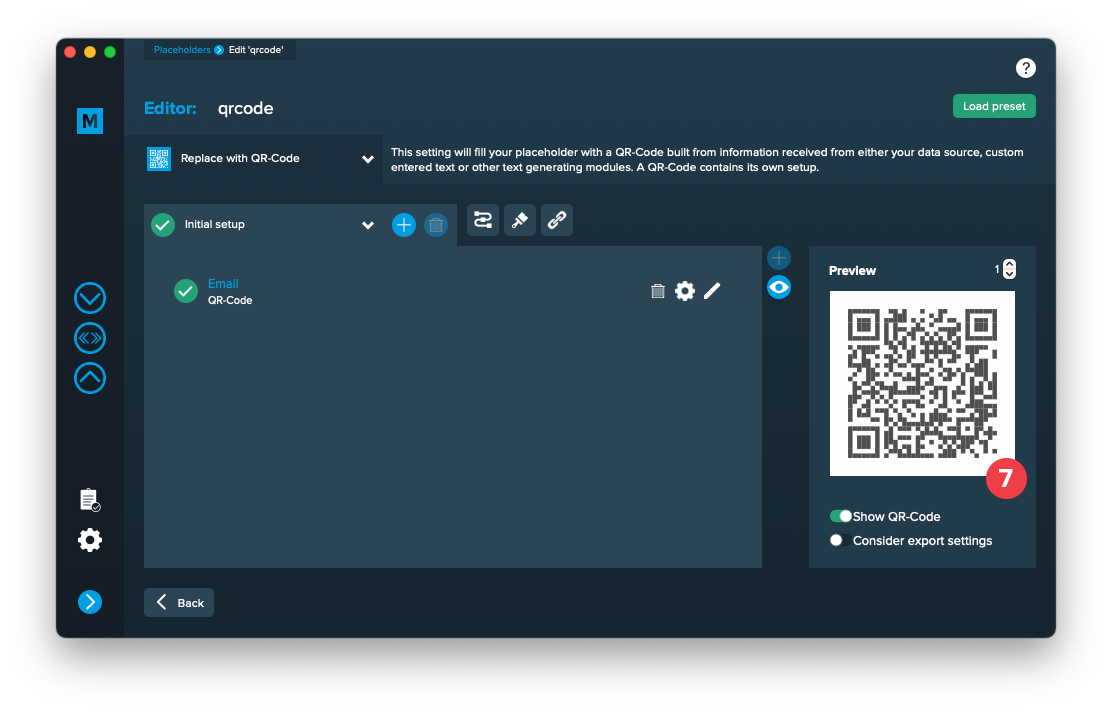
Once you configured all required (and optional) items and the setup is valid (green check), you can exit the QR-Code editor with the back button [6] …
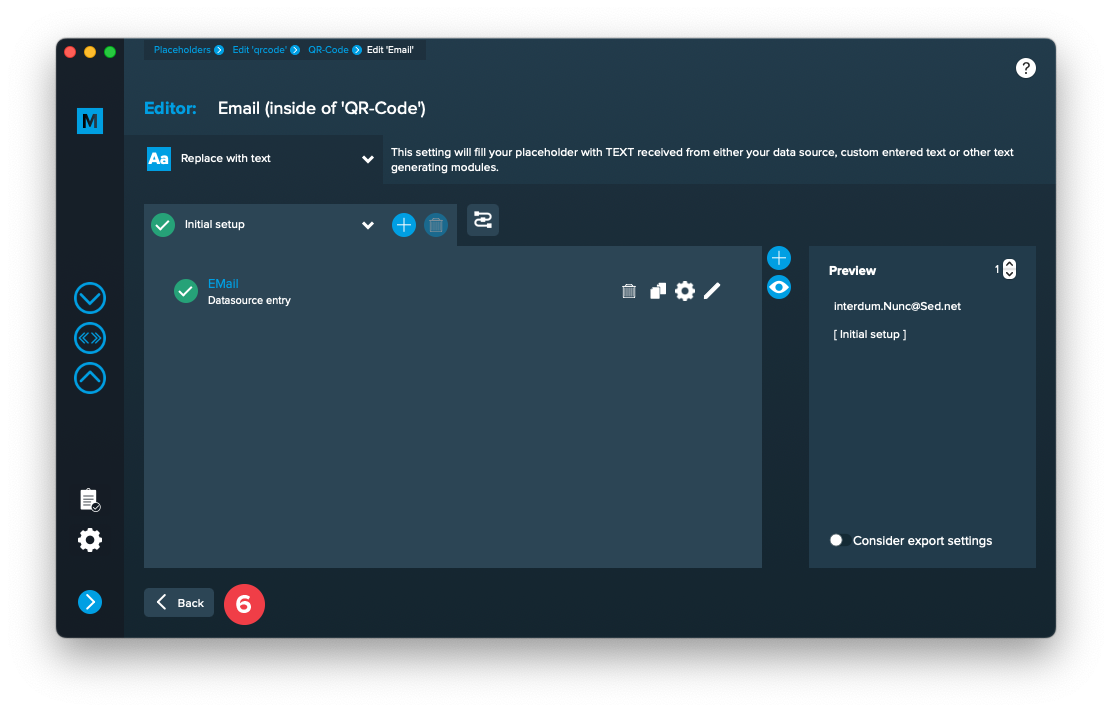
… and see a preview of the QR-Code [7].
Setup dynamically changing QR-Code colors
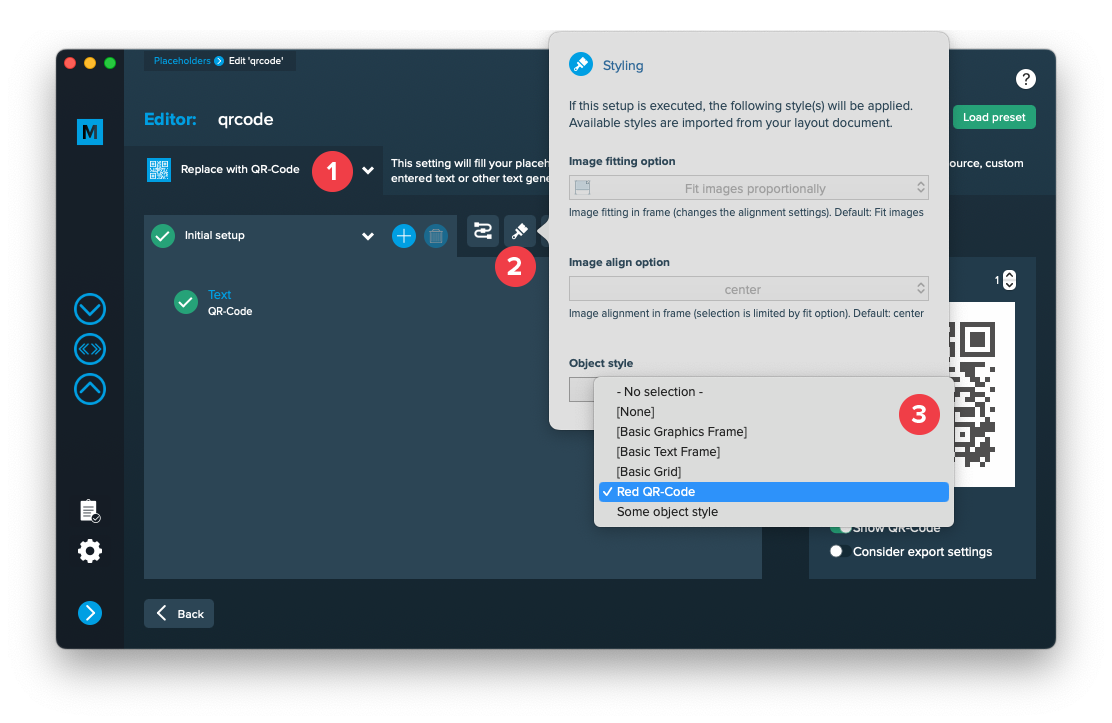
To apply the prepared object styles (in chapter “Prepare dynamically changing QR-Code colors”) open the QR-Code placeholder in the editor. Make sure you have selected the QR-Code type [1], open the style panel [2] and select the object style [3].
Once applied, the QR-Code will update and show you the applied object style with fill color “red” and text color “yellow”.
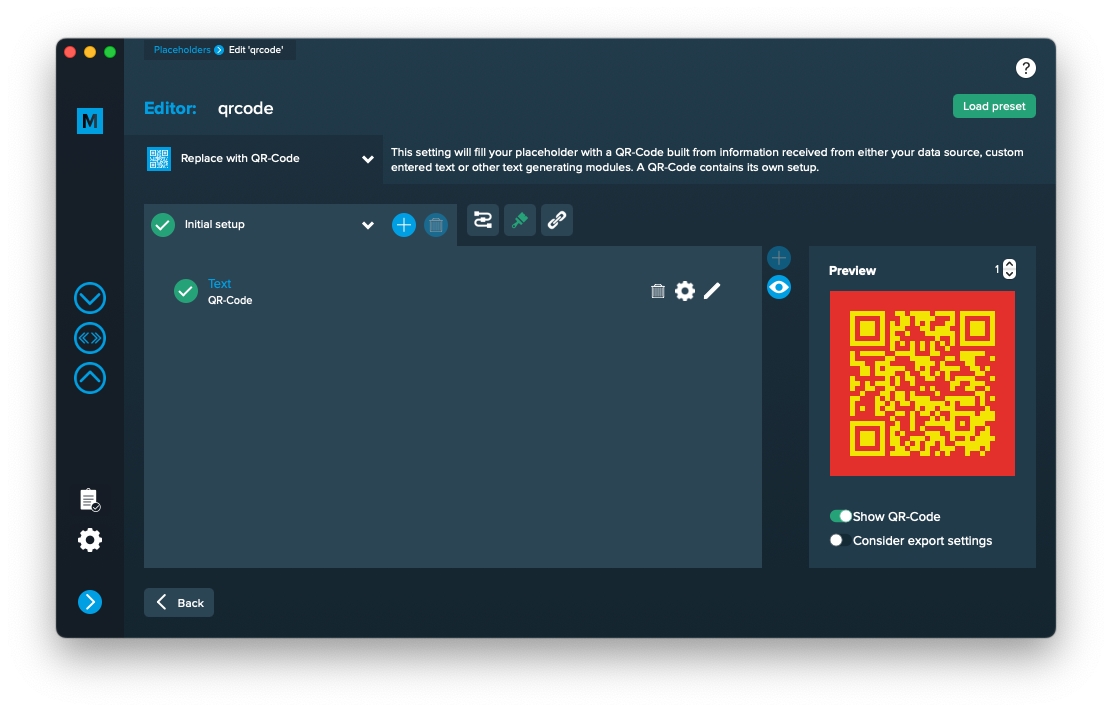
Note: Applying object style on a single setup is senseless because they will be applied to every record. In this case you could apply these colors in the layout directly. Using object styles for QR-Codes to change colors dynamically reveals its power when using multiple setups that are triggered under certain conditions. E.g. most QR-Codes have standard color but a few receive the above shown object style.