1 Layout preparation & import
Add placeholders to your layout
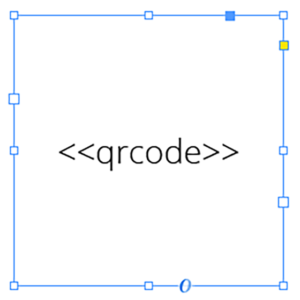
Add black QR-Code placeholder
Requirements
- The placeholder text must be located in a single text frame (not linked with any other)
- The text frame must be a square (same height and width)
- The placeholder text including tags must be the only content of the text frame (be careful with spaces)
- You can choose any text you like (a-z, 0-9, _-)
- If you want to use Autolink you can add # to identify the placeholder as QR-Code, e.g. <<#qrcode>>
- For a black QR-Code you should choose a black font color
Note: For better performance also give the textframe a background color, even if it is the same then the underlying content. This allows MyDataMerge to choose a more efficient process of generating QR-Codes.
2 Export
Filetypes
Export to Adobe InDesign® files
If you want to export to Adobe InDesign files go to export > filetype and select the preferred filetype from the dropdown.

Use a static filename with counting number
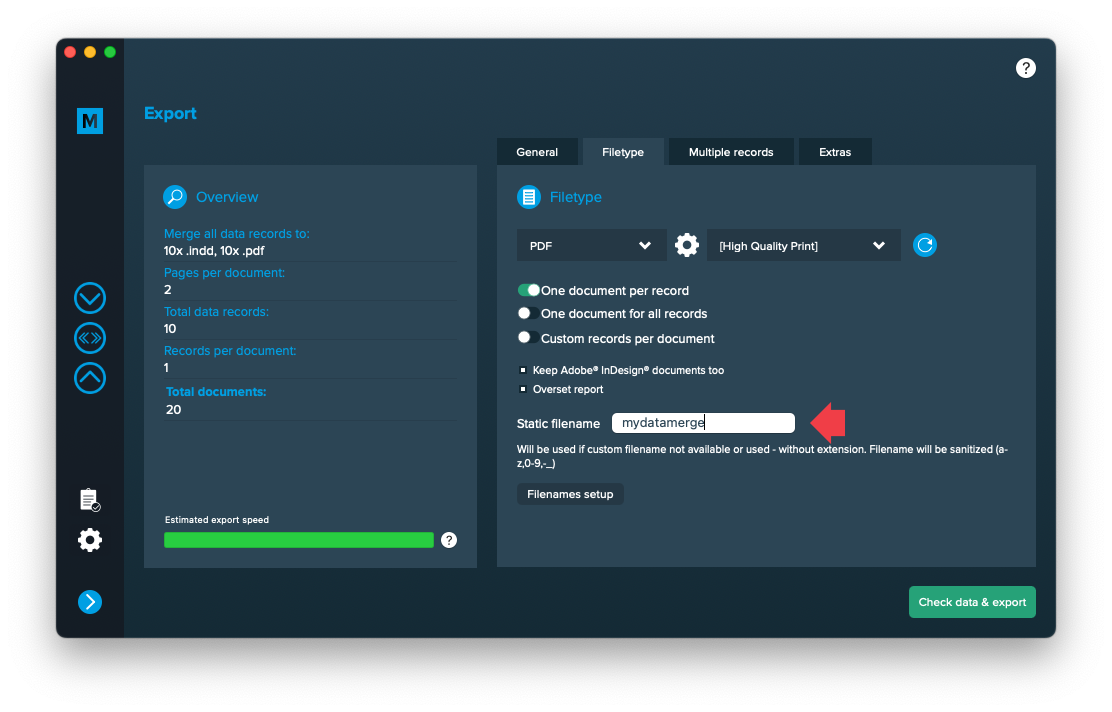
You can set a static filename in Export > Filetype > “Static filename” field.
With static filenames, every file will get the same name and a counting number will be attached. For example if you define static filename to be “mydatamerge” then files will be named like this:
- mydatamerge_1
- mydatamerge_2
- mydatamerge_3
- and so on
Please note that static filenames only allow a-z, 0-9, – and _ characters. Other characters will be removed or replaced.