1 Layout preparation & import
Add placeholders to your layout
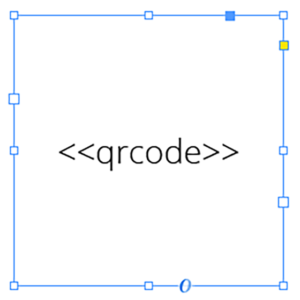
Add black QR-Code placeholder
Requirements
- The placeholder text must be located in a single text frame (not linked with any other)
- The text frame must be a square (same height and width)
- The placeholder text including tags must be the only content of the text frame (be careful with spaces)
- You can choose any text you like (a-z, 0-9, _-)
- If you want to use Autolink you can add # to identify the placeholder as QR-Code, e.g. <<#qrcode>>
- For a black QR-Code you should choose a black font color
Note: For better performance also give the textframe a background color, even if it is the same then the underlying content. This allows MyDataMerge to choose a more efficient process of generating QR-Codes.
2 Export
Filetypes
Export to Adobe InDesign® files
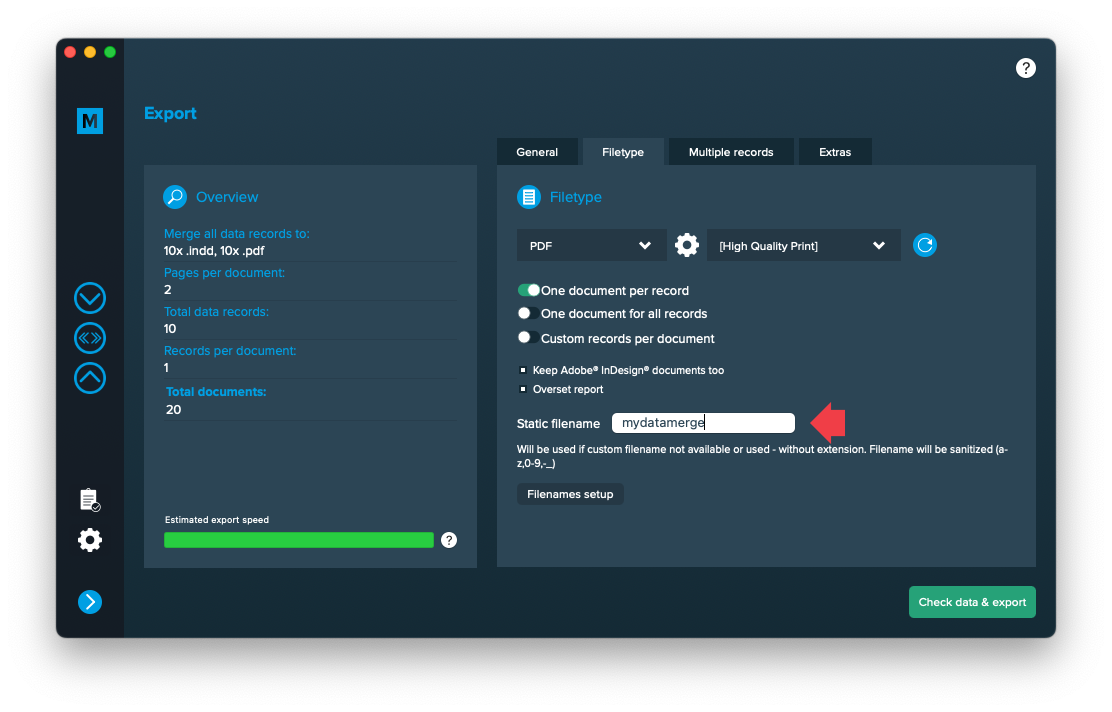
If you want to export to Adobe InDesign files go to export > filetype and select the preferred filetype from the dropdown.

Use a static filename with counting number
You can set a static filename in Export > Filetype > “Static filename” field.
With static filenames, every file will get the same name and a counting number will be attached. For example if you define static filename to be “mydatamerge” then files will be named like this:
- mydatamerge_1
- mydatamerge_2
- mydatamerge_3
- and so on
Please note that static filenames only allow a-z, 0-9, – and _ characters. Other characters will be removed or replaced.
Extras
Setup GREP replacements
GREP text actions allow you to search and replace specific strings matching custom search patterns with other strings or patterns AFTER the merge process is completed. They are applied to all documents generated.
Go to Export > Extras > GREP text
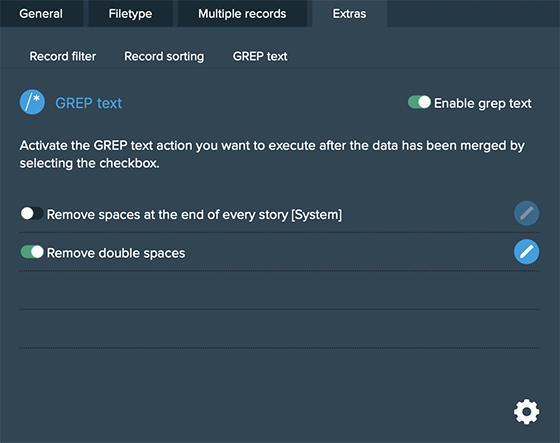
Here you can activate or deactivate your configured GREP text replacements. To edit them click on the pen icon of each row, to add new ones click on the gear icon in the bottom right. This will take you to the preferences where you can add new actions or delete existing ones (Note: Predefined actions cannot be deleted. They are flagged with [System] at the end of the name):
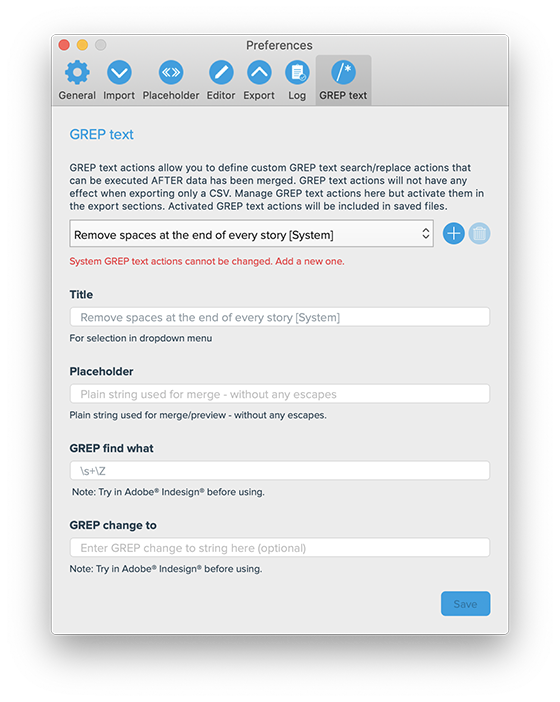
GREP text actions are stored locally on your machine. Only activated actions will be added to project files.