1 Layout preparation & import
Add placeholders to your layout
Add black QR-Code placeholder
Requirements
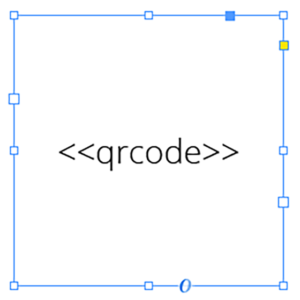
- The placeholder text must be located in a single text frame (not linked with any other)
- The text frame must be a square (same height and width)
- The placeholder text including tags must be the only content of the text frame (be careful with spaces)
- You can choose any text you like (a-z, 0-9, _-)
- If you want to use Autolink you can add # to identify the placeholder as QR-Code, e.g. <<#qrcode>>
- For a black QR-Code you should choose a black font color
Note: For better performance also give the textframe a background color, even if it is the same then the underlying content. This allows MyDataMerge to choose a more efficient process of generating QR-Codes.
2 Export
Filetypes
Export to PNG files
If you want to export to PNG files go to export > filetype and select the preferred filetype from the dropdown.

Setup custom filenames
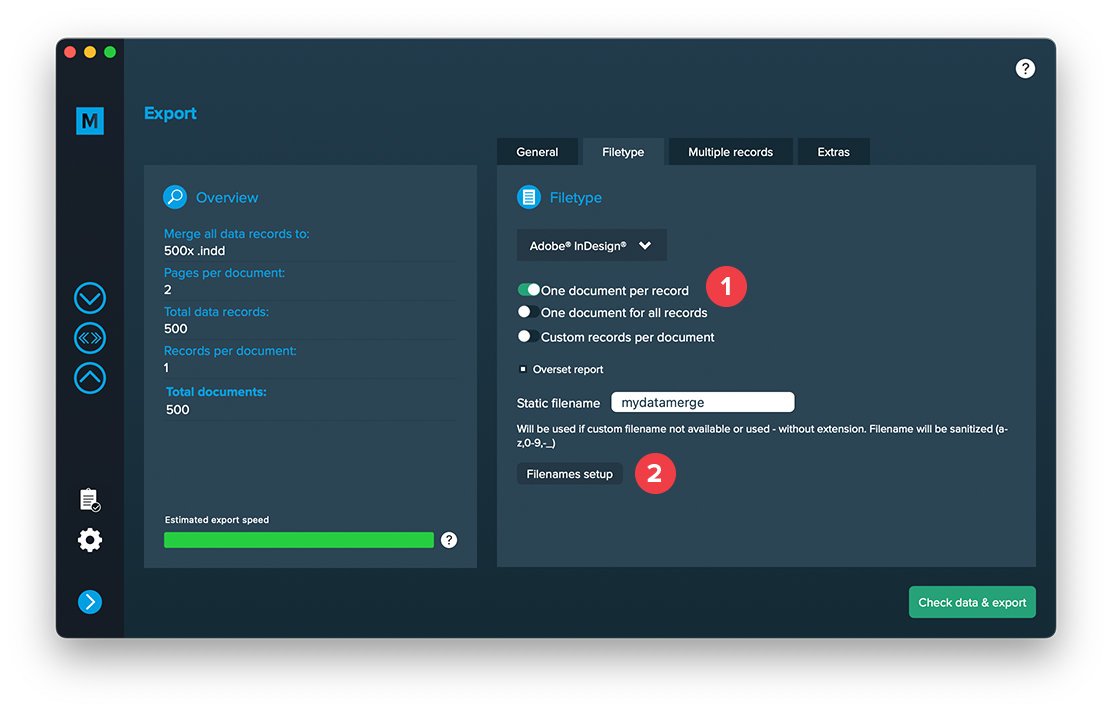
To configure dynamic file names go to Export > Filetype and make sure “One document per record” [1] is activated. Then a button “Filenames setup” [2] appears. Click it to configure your filenames.
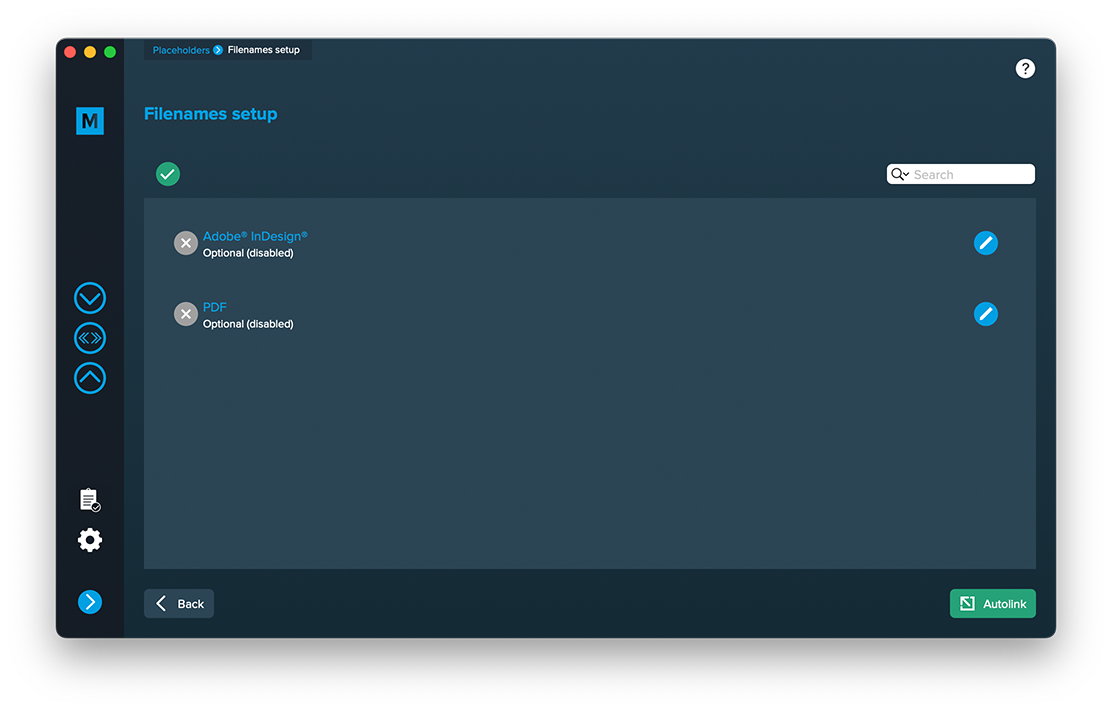
If you click the “Filenames setup” button you can then select the filetype to setup custom naming. If you e. g. export to PDF files and keep a copy of your InDesign files you can define both the names for the PDF files and the InDesign files. Double click a row and enable it. Then you can configure it like a placeholder.