1 MyDataMerge configuration
Editing image placeholders
Showing MyDataMerge where to look for images
To tell MyDataMerge where to look for your images, follow these instructions
- Make sure your placeholder has the right type selected “Replace with image” [1]
- Add a datasource entry and select the column with the image filenames [2]
- Open the settings (gear icon). Then choose the folder where the images are located [3]. This will add the selected path to your image filenames.
By now you should see the image in the preview (you might need to grant read access for MyDataMerge to the selected folder).

2 Export
Filetypes
Export to interactive PDF files
If you want to export to interactive PDF files go to export > filetype and select the preferred filetype from the dropdown.

Use a static filename with counting number
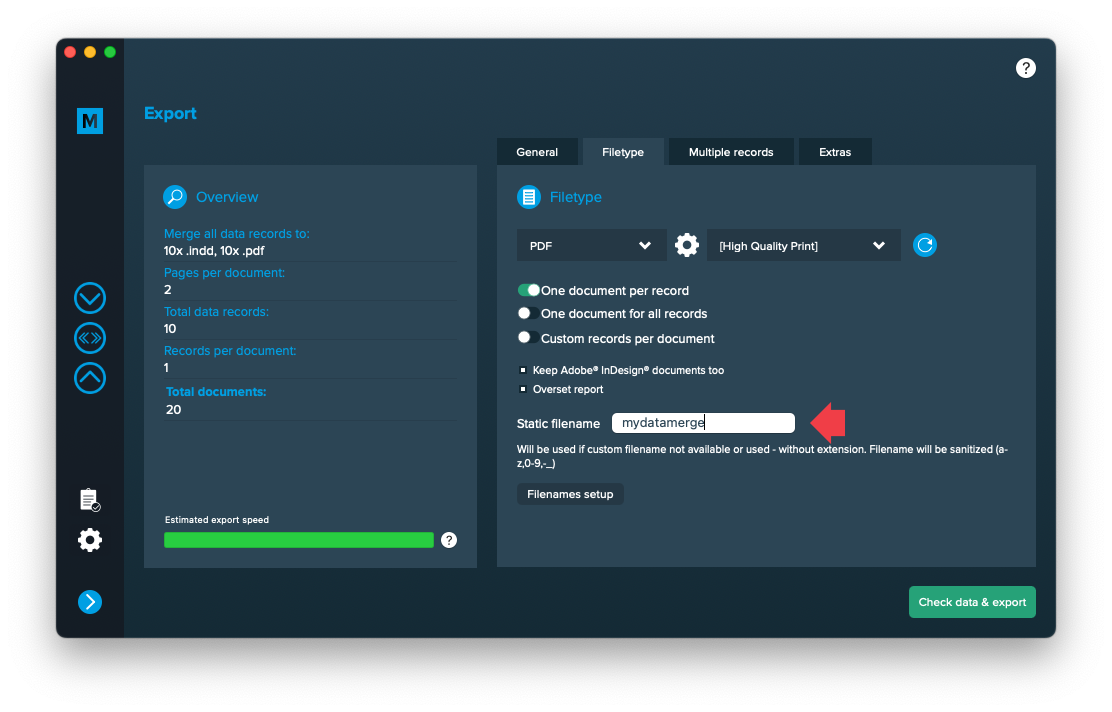
You can set a static filename in Export > Filetype > “Static filename” field.
With static filenames, every file will get the same name and a counting number will be attached. For example if you define static filename to be “mydatamerge” then files will be named like this:
- mydatamerge_1
- mydatamerge_2
- mydatamerge_3
- and so on
Please note that static filenames only allow a-z, 0-9, – and _ characters. Other characters will be removed or replaced.