1 Layout preparation & import
Multiple records
Multiple records (prepared layout)
This is the most effective approach to apply multiple records to one layout (with one or more pages). To tell MyDataMerge where your records should go in the layout you need to create multiple groups of the same instance.
Example – Multiple business cards with front and rear side
You have a business card that you want to have 8 times on a sheet including their rear sides. First of all, layout one business card with all placeholders you need and group it. By grouping it, MyDataMerge knows now that all the placeholders inside the group belong together.
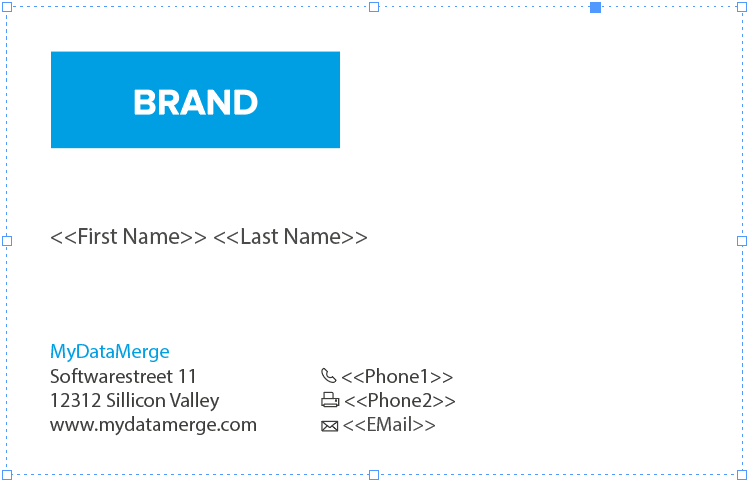
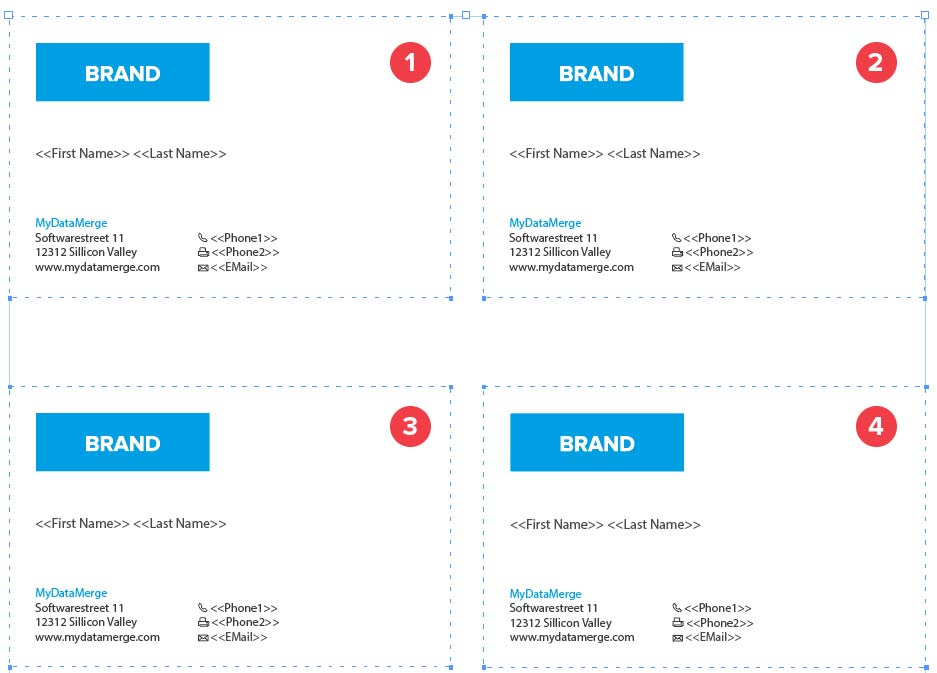
Next, duplicate (or copy/paste) the group to create another business card. Arrange it on your sheet in the order you want the data to be merged. This can be from left to right like in the below example [1 to 4] or right to left, or up to down …
Now on the next page you arrange groups of the rear sides of the business cards, but as the rear side is mirrored you need to start from right to left [1 to 4] with arranging groups:
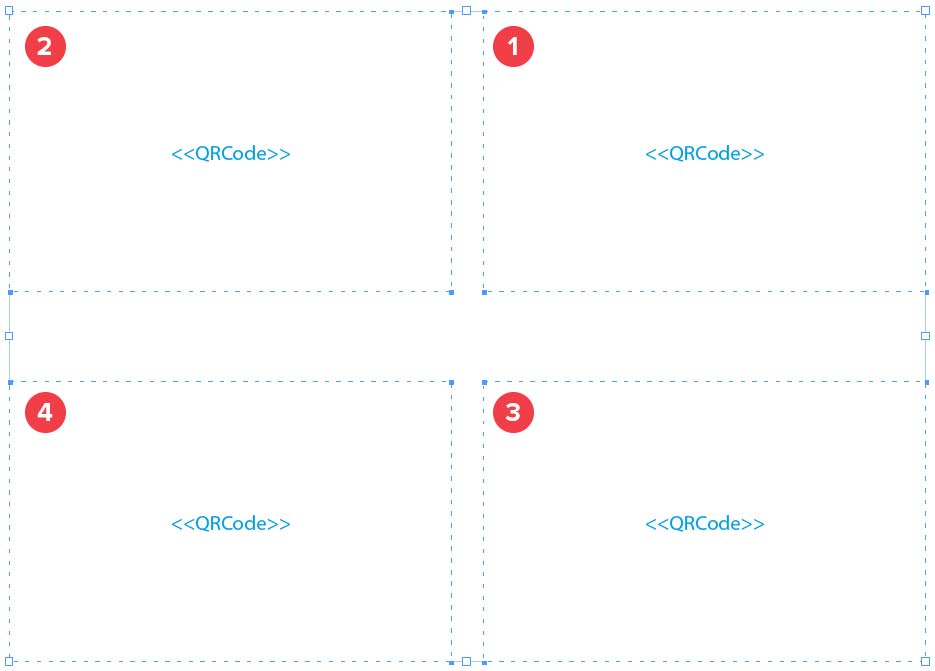
Remember: The groups tell MyDataMerge which placeholders belong together and the order you arrange the copies with represents the order the records are merged.
2 MyDataMerge configuration
Editing image placeholders
Downloading images
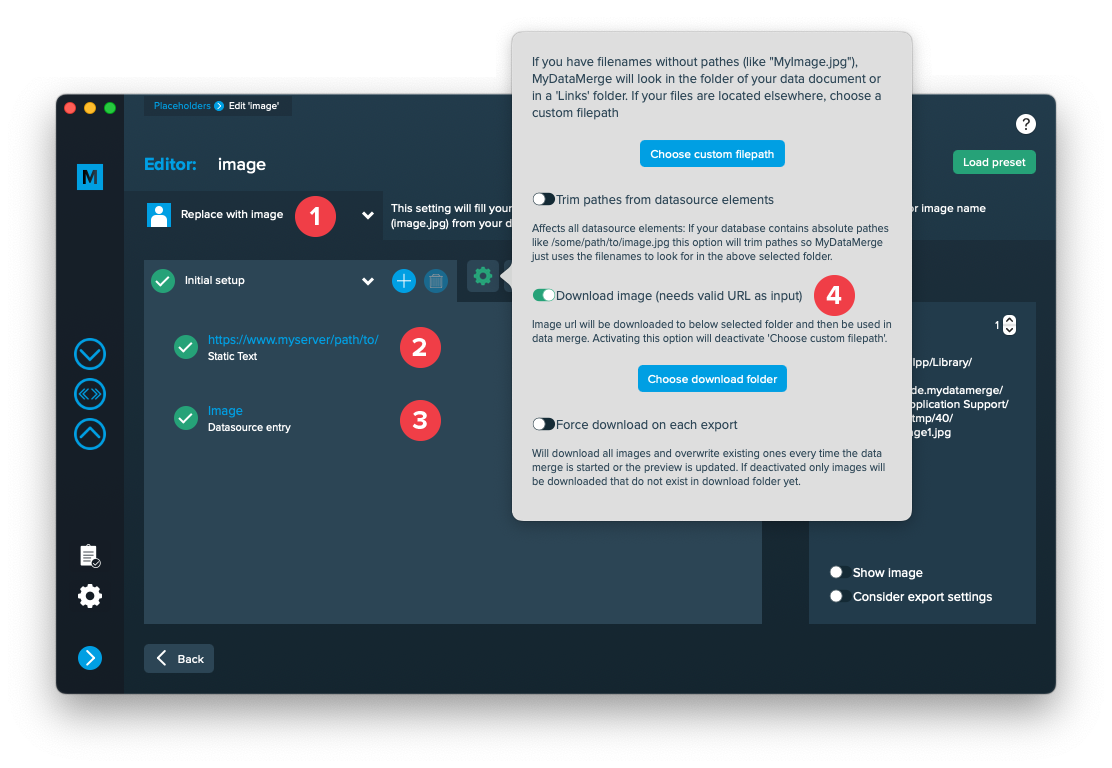
To advice MyDataMerge to download images please follow these instructions
- Make sure your image placeholder has the right type “Replace with image” [1]
- Add static text element with the base URL to your images, e.g. “https://www.myserver/path/to/” [2]
- Add a datasource element and select the column with the image names [3], this will add the image name to the above URL “https://www.myserver/path/to/myimage.jpg”
- Open the settings (gear icon), and activate “Download image” [4]. You may additionally select a folder where to download the images to
Issues that may arise
- By default, MyDataMerge checks for file name extensions of images. e.g. “https://www.myserver/path/to/myimage.jpg” -> .jpg – If it doesn’t find any, an error will be thrown. You can disable this behaviour in the preferences > editor > Disable file extension check for downloaded images
- If images change online, MyDataMerge doesn’t know that. At the first time an image is downloaded, it will be cached and not re-downloaded by default (for a better performance). You can force a download everytime by activating “Force download on each export” in the image settings (check the image above).
3 Export
Filetypes
Export to PDF files
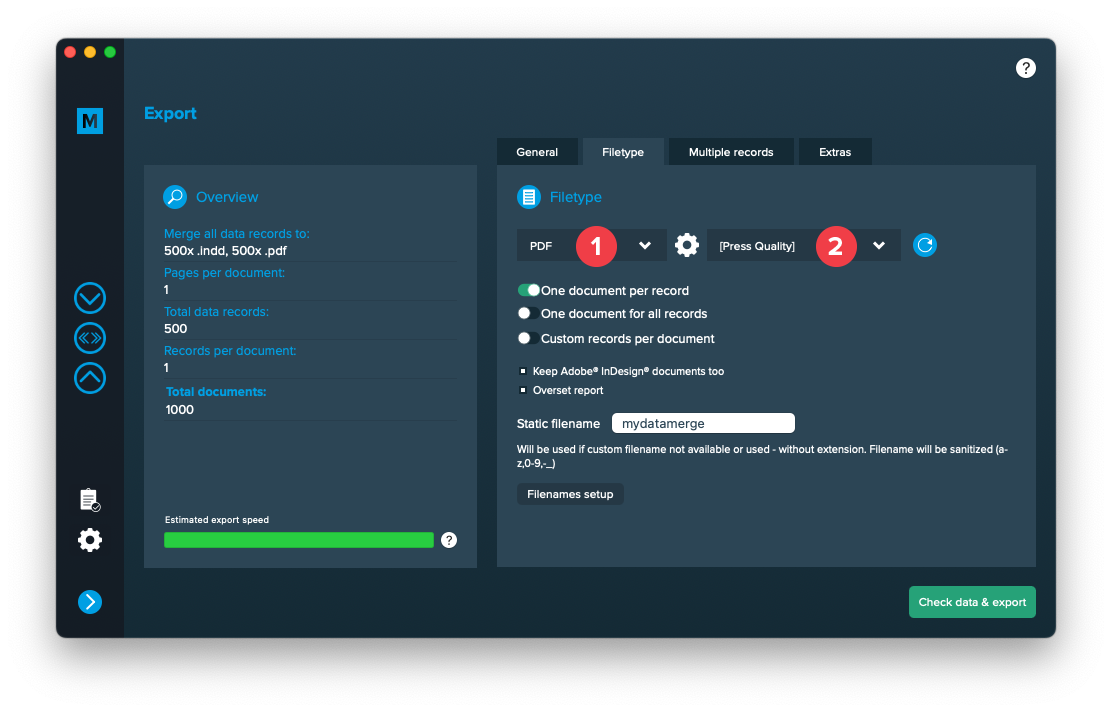
If you want to export to PDF files go to export > filetype and select the preferred filetype from the dropdown [1]. Note that you have to select a PDF preset [2]. They are directly imported form Adobe InDesign and can be updated with the circled arrow icon.
Use a static filename with counting number
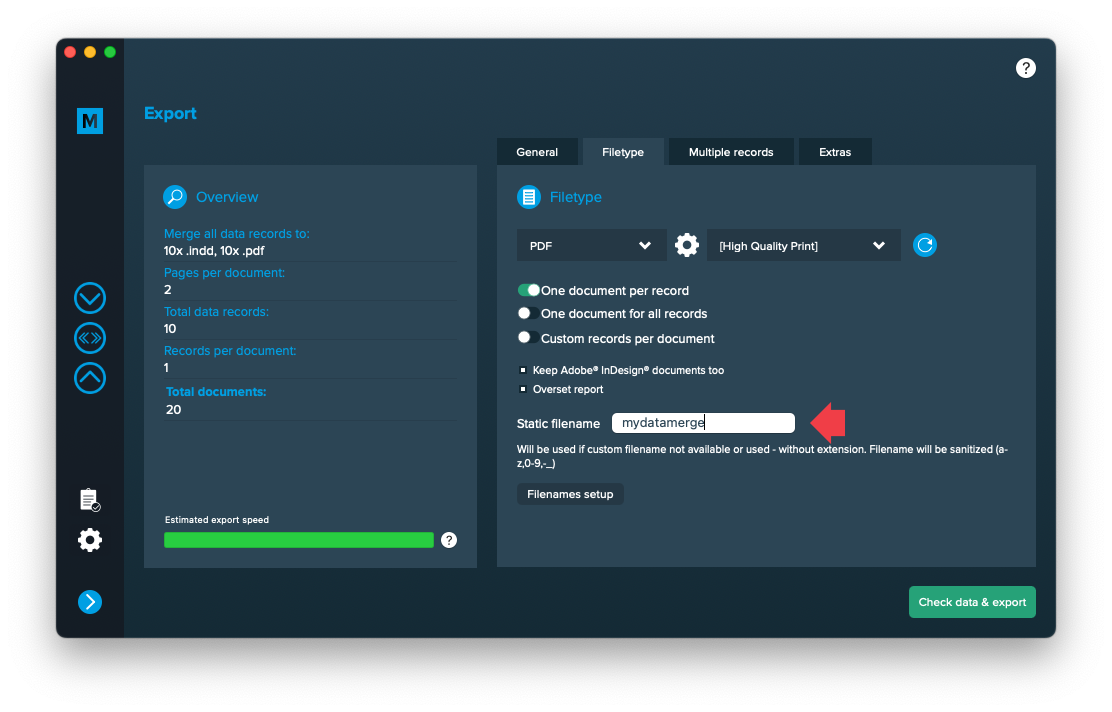
You can set a static filename in Export > Filetype > “Static filename” field.
With static filenames, every file will get the same name and a counting number will be attached. For example if you define static filename to be “mydatamerge” then files will be named like this:
- mydatamerge_1
- mydatamerge_2
- mydatamerge_3
- and so on
Please note that static filenames only allow a-z, 0-9, – and _ characters. Other characters will be removed or replaced.